The Definitive Smart Speaker & Wi-Fi Connection Guide
Welcome to the CogniAutoHome educational configuration portal. This independent consumer resource provides verified, step-by-step instructions to successfully link your smart voice assistants—including standard Echo speakers, Echo Dot models, Echo Pop, and Echo Studio hardware—to your home wireless local area network (Wi-Fi).
Select Your Setup Steps
👇 Tap the option below that matches your current setup step:
📍 Table of Contents: Guide Navigation
Phase 1: Activating Device Discovery Mode
If you have recently installed a new internet service provider router, updated your network's security password, or relocated your smart device to a different room, use this standard sequence to restore connectivity:
Plug your smart speaker into a standard wall outlet using its original power adapter. Allow internal firmware 30 to 45 seconds to initialize.
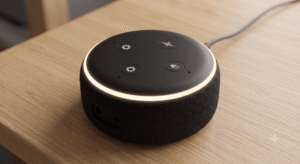
If the light ring on your speaker does not automatically begin pulsing, locate the physical Action Button on the top panel (raised single dot icon) and press and hold it down continuously.
Maintain firm pressure on the Action button for approximately 15 to 20 seconds. Do not release it prematurely until the light sequence changes.
Release the button the moment the light ring transitions into a spinning orange illumination. This visual cue indicates that hardware is successfully broadcasting its temporary setup signal.
Phase 2: Synchronizing via the Companion Application
1. App Launch & Permissions: Open the official companion application on your smartphone or tablet. Ensure your mobile device's Bluetooth and Location permissions are temporarily enabled to assist with short-range discovery.
2. Access Hardware Directory: Locate and tap the Devices icon positioned on the bottom navigation menu.
3. Registering Infrastructure: Tap the "+" (Plus Sign) icon in the upper right-hand corner. Select Add Device, select your smart speaker category, and pick your specific model layout (Echo, Echo Dot, Echo Pop, Studio, etc.).
4. Network Credential Submission: The app will scan local airwaves. Select your speaker, pick your home Wi-Fi name from the network list, type your security password cleanly into the text field, and tap Connect.
Phase 3: Diagnostic Signal Decoding Guide
If your smart assistant encounters issues during or after setup, evaluate light ring behavior against this reference table:
| Light Ring Array | System State | Required Action |
|---|---|---|
| Pulsing / Spinning Orange | Discovery Mode Active | Speaker is waiting for app input. Launch companion app to pass network password. |
| Spinning Blue & Cyan | Network Handshake / Update | Hardware is authenticating with router or updating firmware. Allow cycle to finish. |
| Solid Red Light | Acoustic Privacy Engaged | Microphone privacy mute switch is engaged. Press physical Mic button to enable listening. |
| Flashing Purple Light | Wi-Fi Connectivity Disruption | Speaker lost internet signal. Check router power or update Wi-Fi password in settings. |
Prefer a step-by-step visual walkthrough?
Launch our voluntary configuration walkthrough tool below to navigate basic setup layout illustrations on this page.